
Within the Documents Library, you can manage your various Document Library folders.
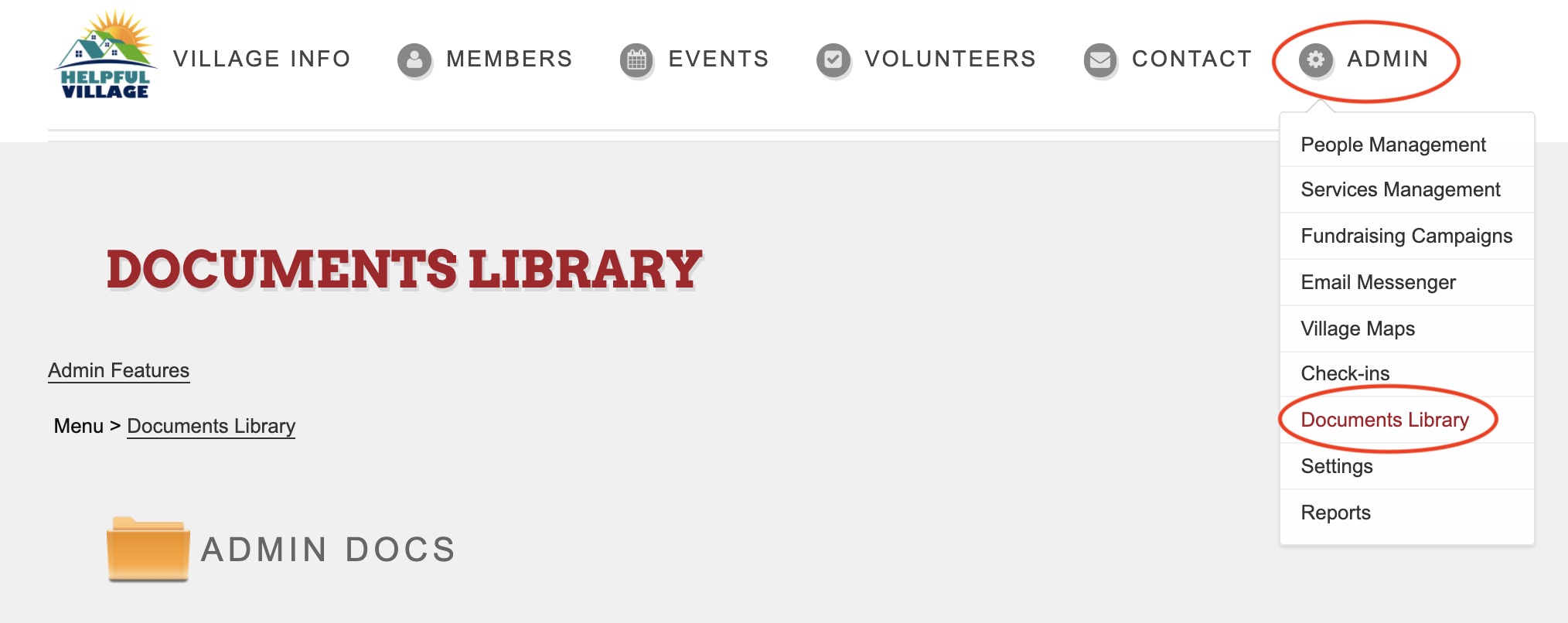
Click "Admin" --> "Documents Library"
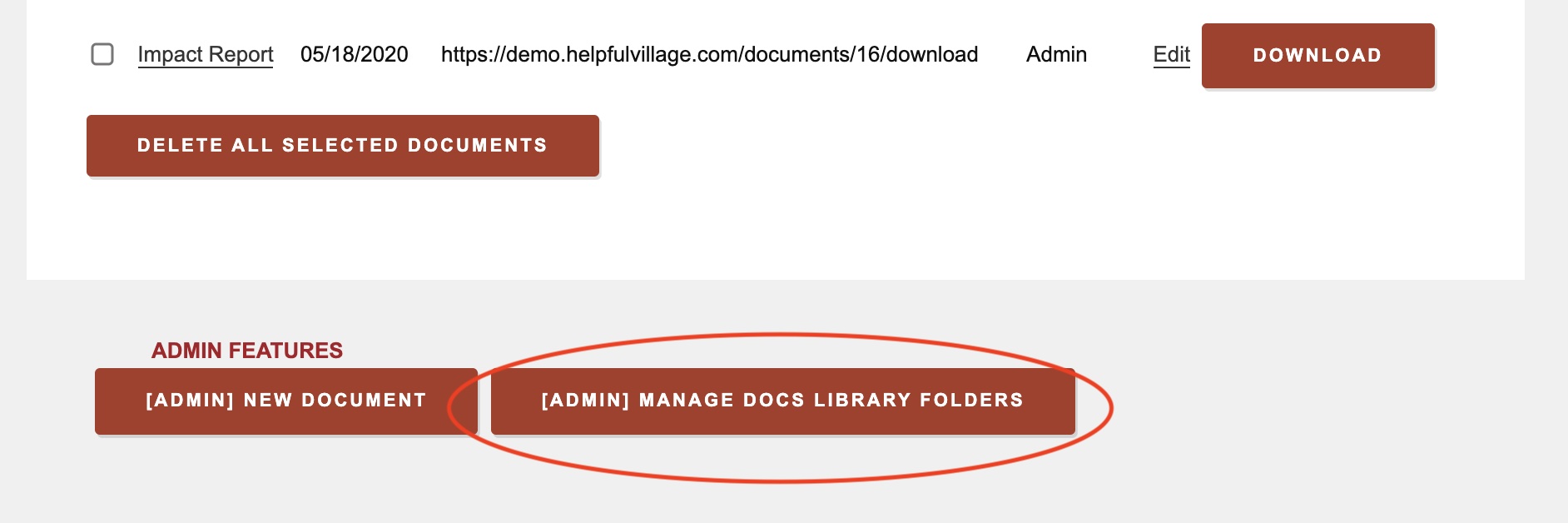
Scroll all the way down and click "[Admin] Manage Docs Library Folders."
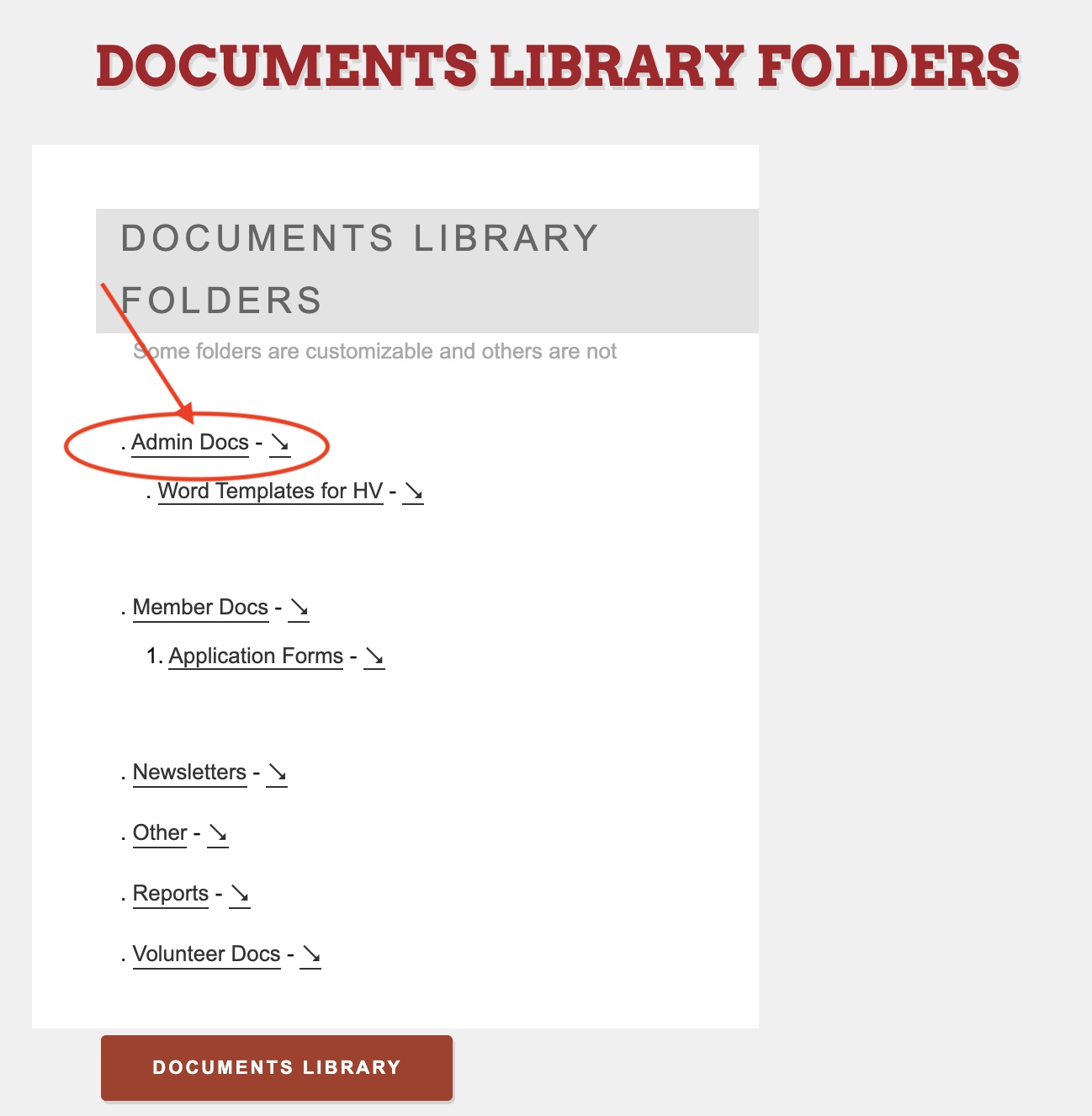
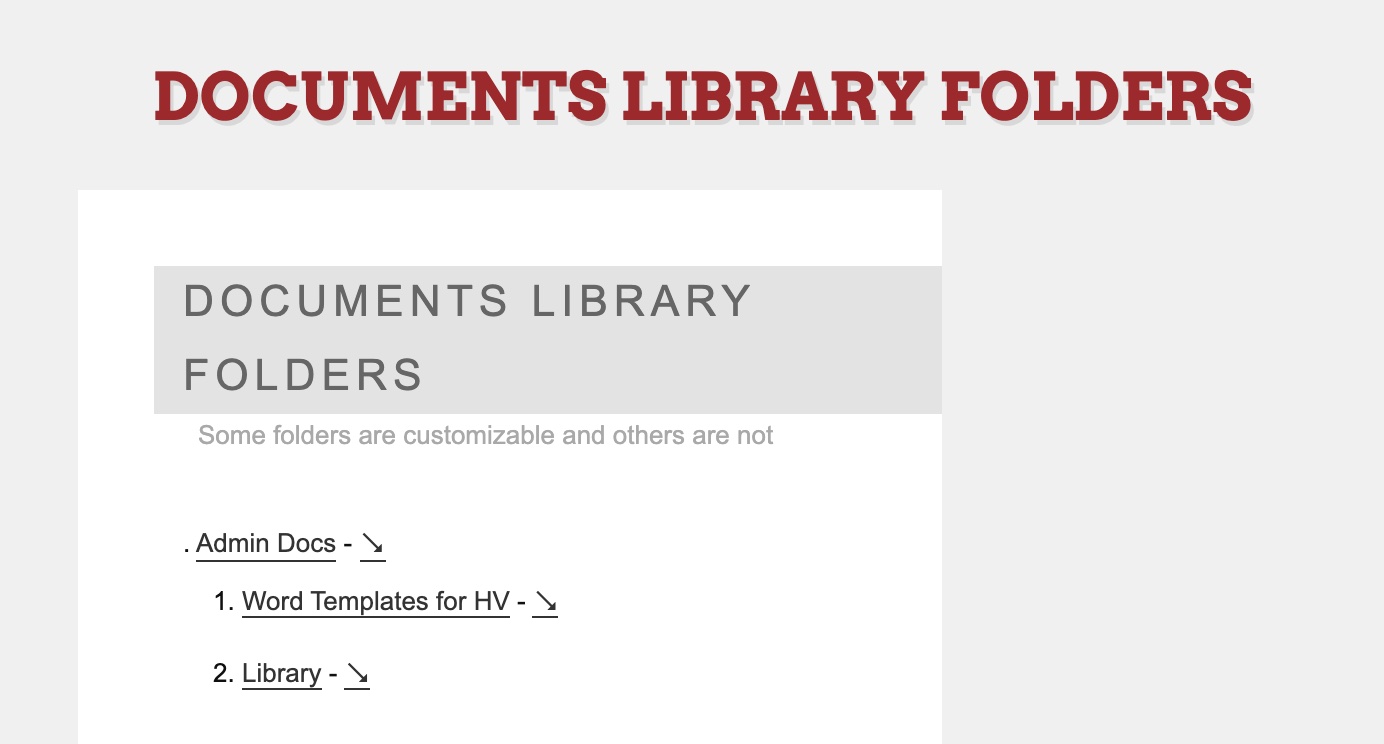
Upon doing so, you will be able to see your Document Library Folders. Click on the Folder you would like to edit/customize. In the example below, we will click on the "Admin Docs" folder.
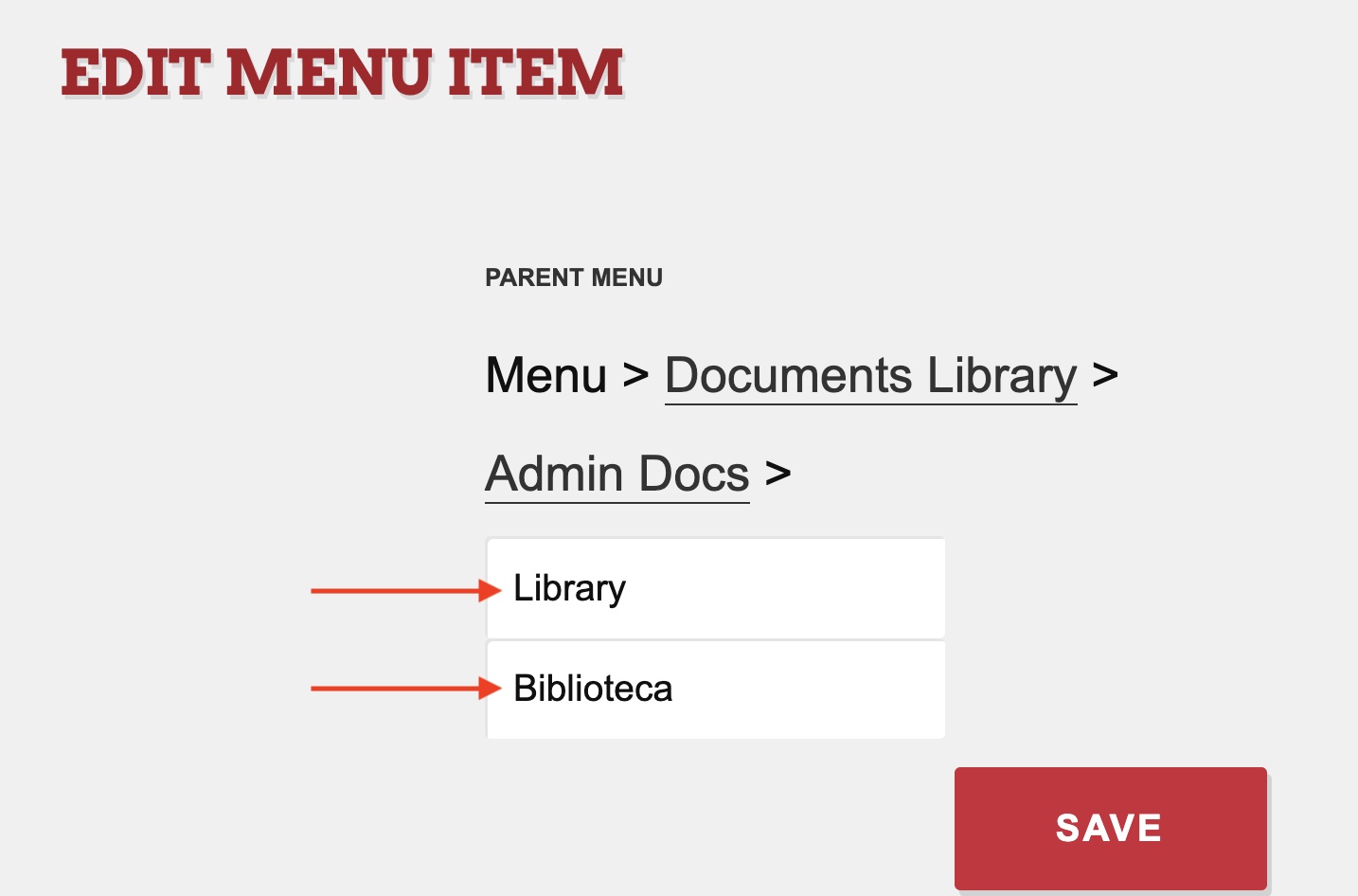
You can click "Add New" to type in a new menu item that can appear in either English or Spanish.

After clicking "Add New," make sure to fill out both bars, one in English and one in Spanish of your desired Menu Item name. Then, click "Save."
Upon clicking "Save," you will see that your new menu item has been saved within your folder!
You can also delete documents within your documents library and upload new documents to your documents library.
To learn more about managing your documents library, CLICK HERE.
Check out this live demo: https://support.helpfulvillage.com/hc/en-us/articles/5666364217495-Live-demo-manage-Documents-Library-folders
Comments
0 comments
Please sign in to leave a comment.