
Keeping track of which of your participants attend your events (both in-person and online) is essential to measure your community's social connections for report analysis. Hence, this tutorial will walk you through how to illustrate that a participant has actually attended a specific event!
Toggle over "Events," and click "Events List." From there, click on the event that you would like to mark participants present for.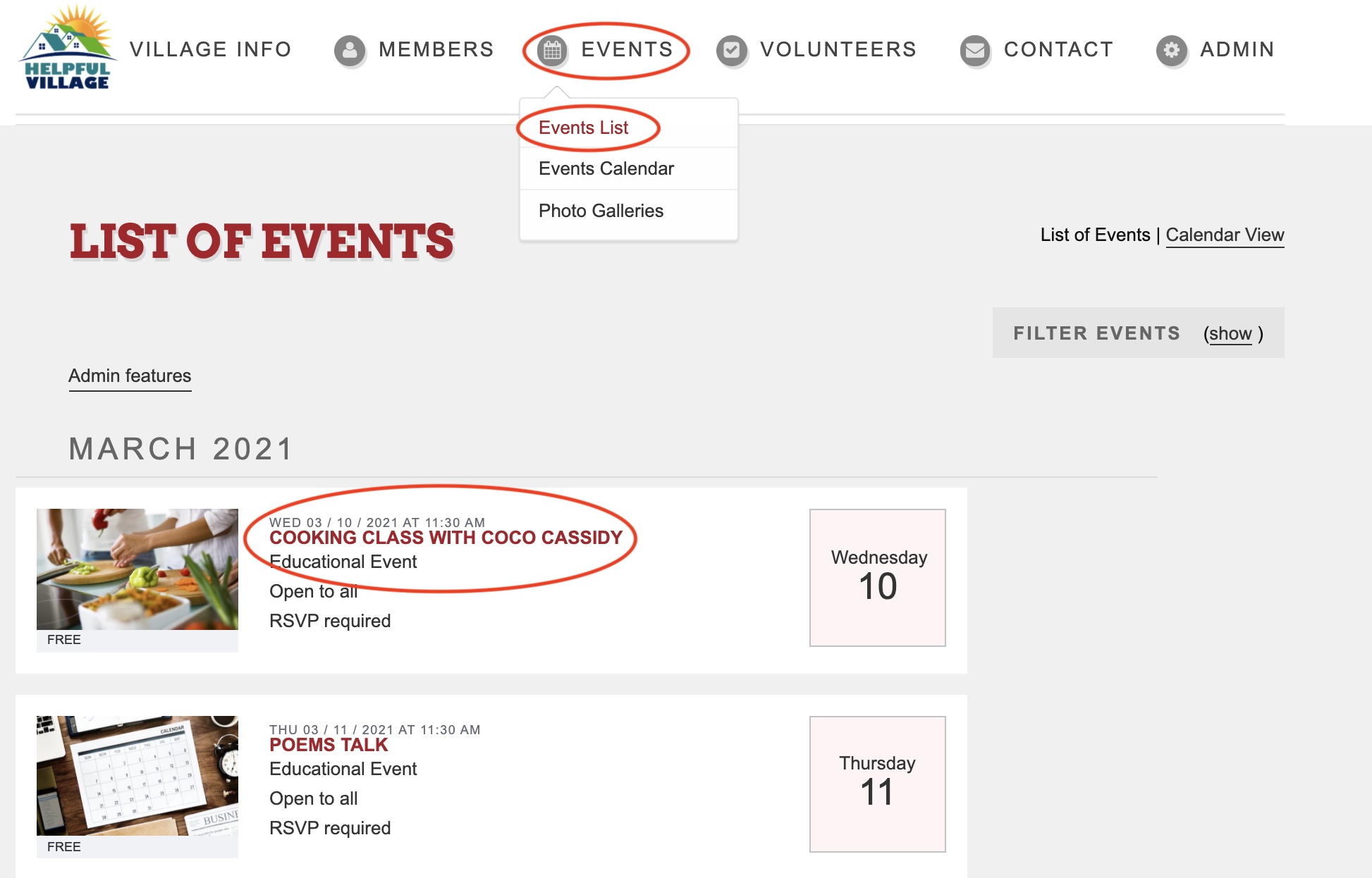
Scroll down, and click "[Admin] Attendance List."
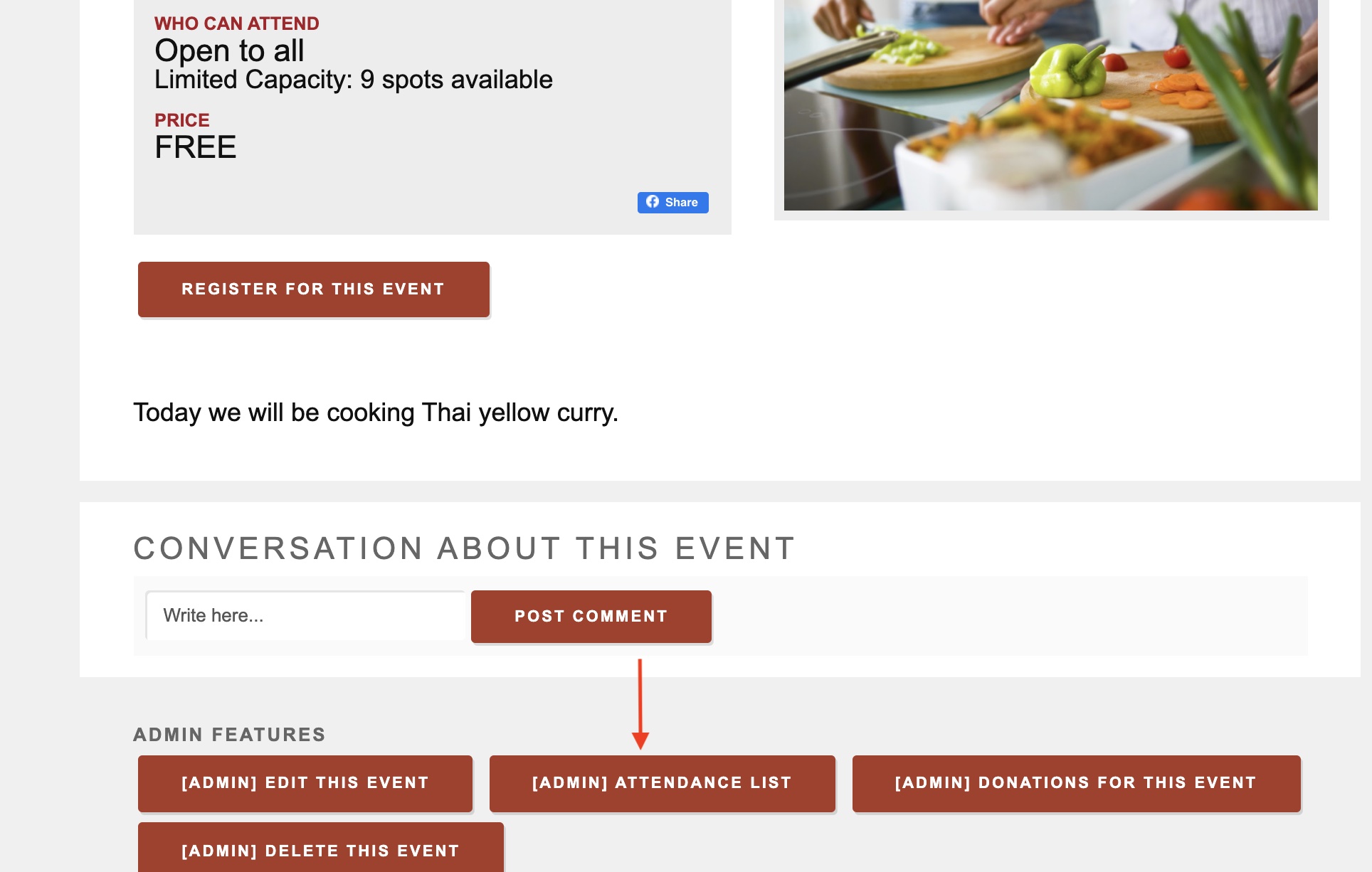
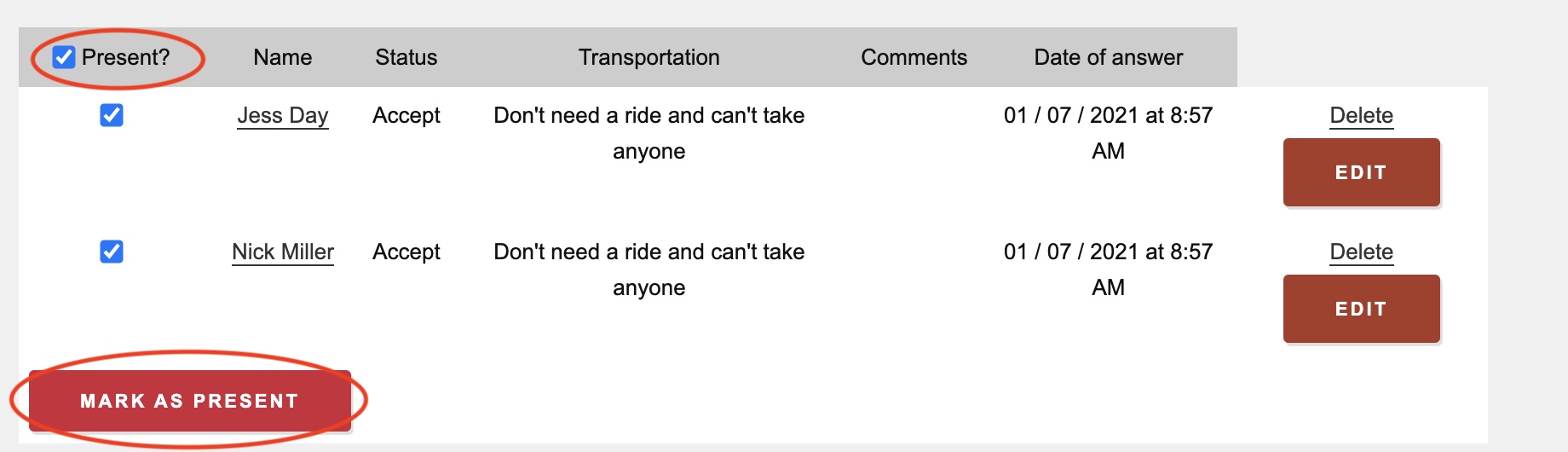
You will then be able to see the attendance list for your event. If everyone was present at the event, you can check the box at the top left corner next to the word "Present?" Upon checking this specific box, all of your participants will be marked as having been present at the event. After you click the "Present?" checkbox, click the "Mark as Present" button.
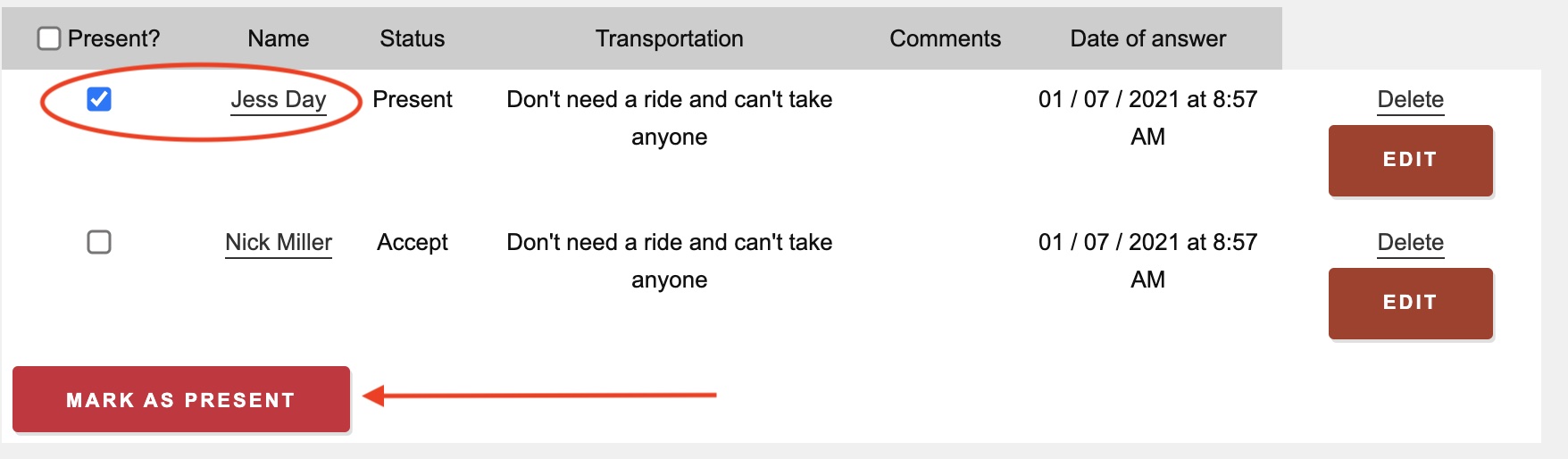
If not all participants attended the event, you will not want to checkmark the top left box. Instead, you should individually check only the box next to the individual who was present at the event. Once you check the respective individual's box, click "Mark as Present."
Comments
0 comments
Please sign in to leave a comment.